Notification Settings
In the notification settings screen, you can set the timing and frequency for sending license expiration notification emails. When the specified time arrives, a license expiration notification email will be sent to all administrators of the organization.
Left Menu설정 > 알림 설정Entering from.
1. License Expiration Notification
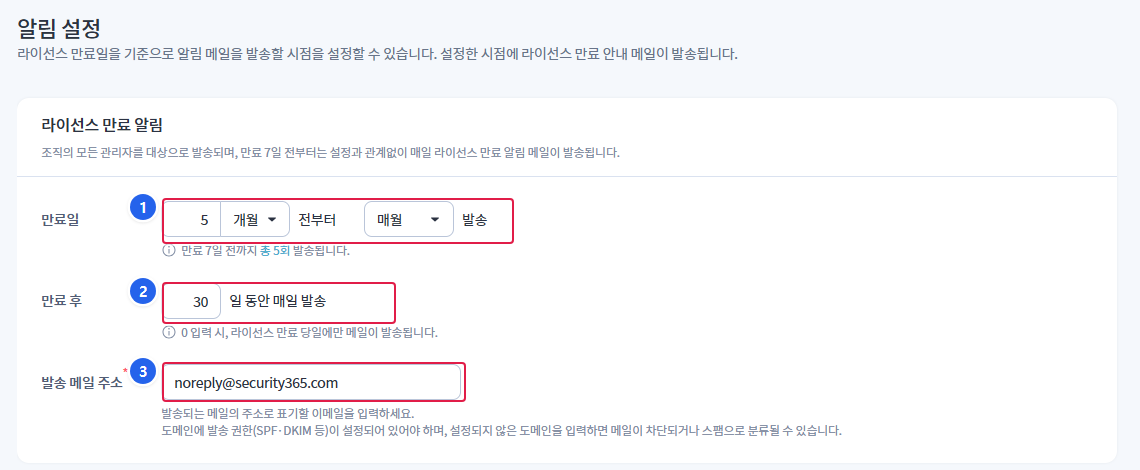
1. Notification start time and sending frequency
- Set how far in advance to start notifications based on the expiration date. The unit is
개월or년Select from among. - Continuing the sending frequency
매월/매주/매일Select from among. - The total number of times sent, according to the settings, will be indicated below the input field until 7 days before expiration.
2. Shipping Period After Expiration
- Set how many days to send daily after expiration.
0If you enter __PH_0__, emails will be sent only on the expiration day.
3. Sending Email Address
- This is the address to be listed as the sender of the notification email. (Required)
- The domain must have sending permissions (SPF, DKIM, etc.) configured. If you enter a domain that is not configured, emails may be blocked or classified as spam.
An expiration notification email will be sent daily regardless of the above settings starting 7 days before expiration.
2. Settings Items
| item | Input format | Explanation |
|---|---|---|
| Notification timing before expiration date | number + unit (months / years) | Start time for notifications based on expiration date |
| Sending Frequency | Every month / Every week / Every day | Notification sending interval from the start time |
| Expiration After Sending Period | Number (day) | Period to be sent daily after expiration.0Send only on the expiration day when inputting. |
| Sending email address | Sender address of the notification email (required) |
3. Recipients and Forced Dispatch
| division | Content |
|---|---|
| Delivery Target | All administrators registered in the organization |
| Forced Dispatch | Sent daily regardless of settings starting 7 days before expiration. |
| After Expiration | Send daily for the set number of days |
4. Save
After entering the value, the bottom저장Click the button. If there are no changed values, the save button will be displayed as inactive.
The sender email address is a required field, so it cannot be saved while left blank.